WinSpy Driver Selection
WinSpy assists with path-related operations on a Windows application. It enables users to obtain the location (XPath) information of fields to perform operations like writing text, getting data, clicking areas, or taking screenshots of the whole screen or a part of it.
- Double-click the
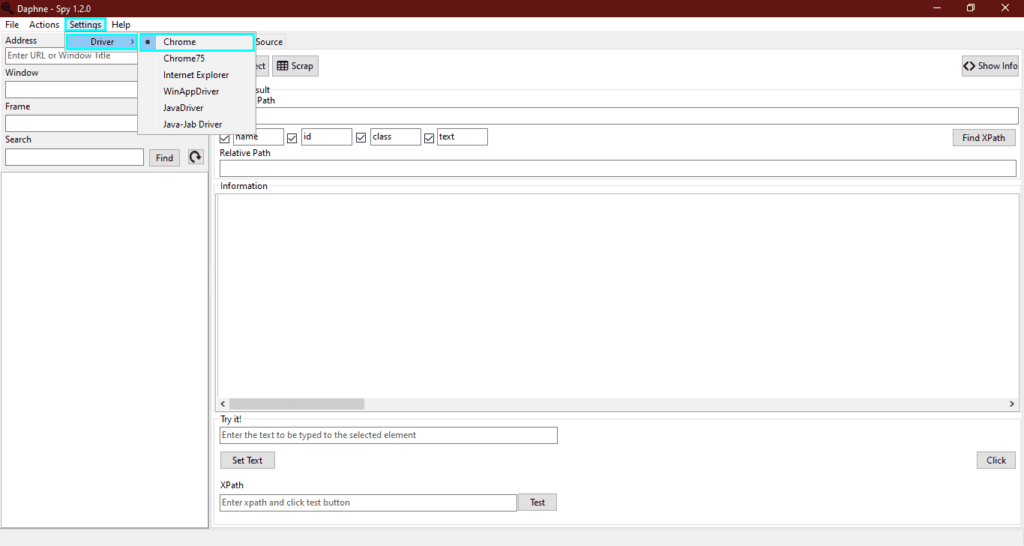
winSpy.exefile to open WinSpy. - Click
Settings>Driver>Chrome.
Access to Web Browser
Search Operation
This scenario demonstrates performing a search operation on YouTube using WinSpy.
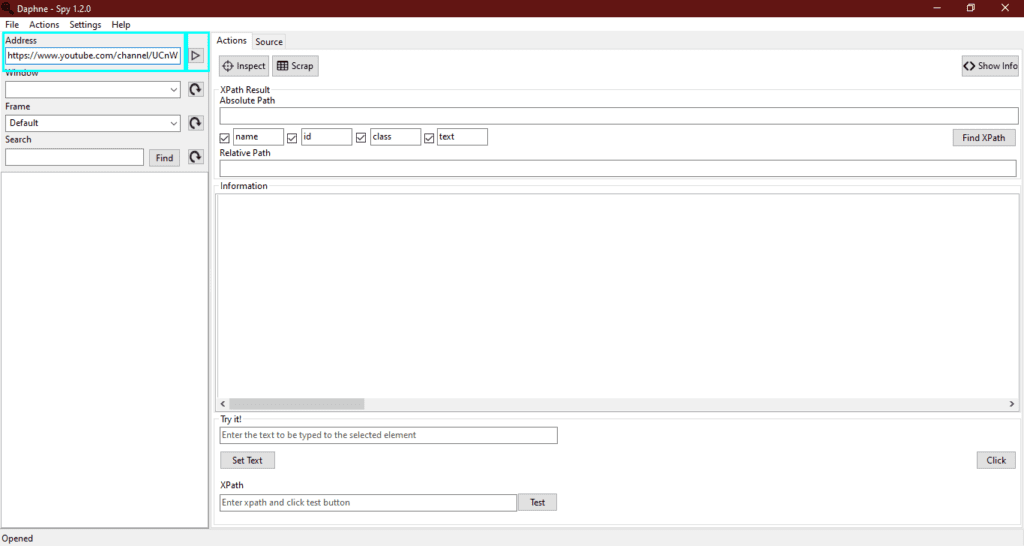
- In the WinSpy application, type or copy-paste the YouTube URL (
https://youtube.com) into theAddresstextbox. - Click the
Runbutton next to theAddresstextbox.

-
After clicking
Run, WinSpy opens a new Chrome page and navigates to the YouTube page, establishing a connection. -
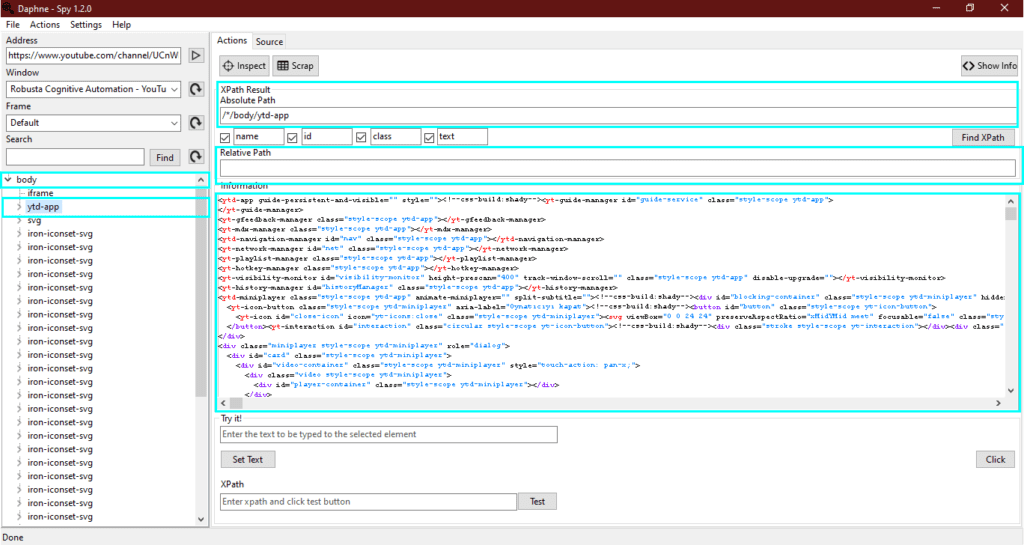
The page tags are listed as a tree view on the left. Clicking an element displays its information in the
Informationfield. WinSpy automatically finds and displays the corresponding location information in theXPath Resultfields. Both can be used in Robusta RPA;Relative Pathinformation is recommended.
- To find the XPath information for a selected element, click the
Inspectbutton. WinSpy will focus on the page.
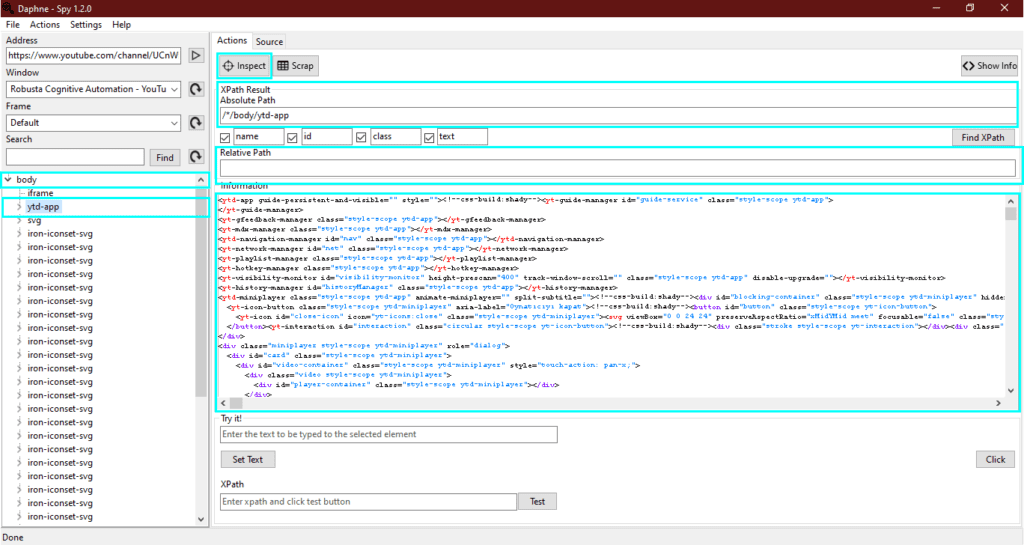
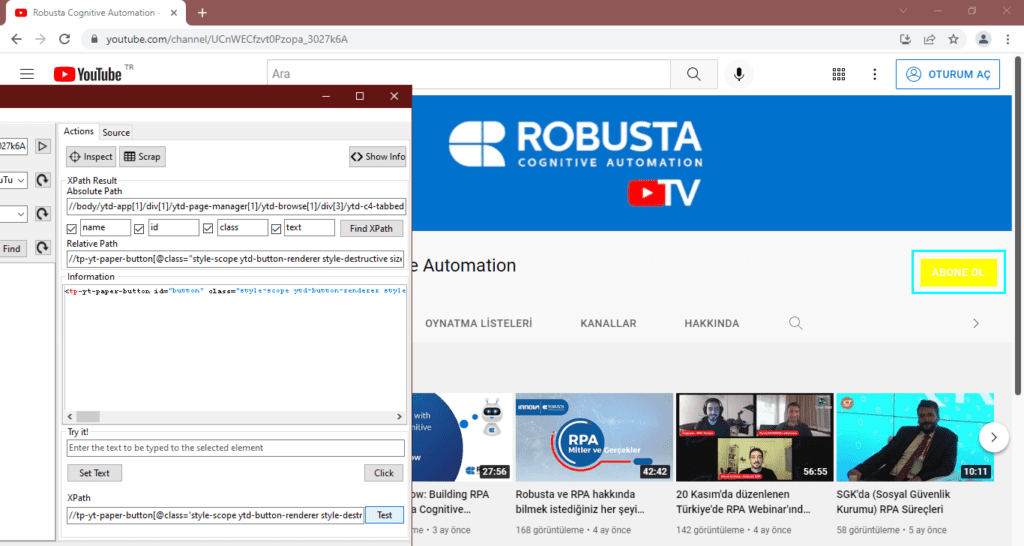
- Hover your cursor over the desired element and wait for 2-3 seconds (it may take longer). WinSpy will detect the element, display it in yellow, and refocus itself once the XPath information is found.
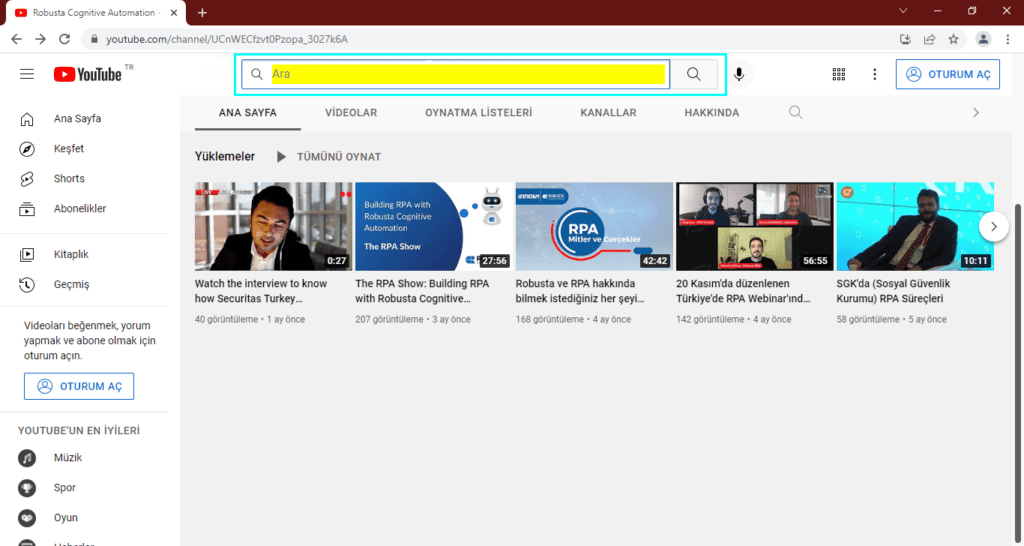
- The information of the relevant element will automatically appear in the
Relative Pathfield.
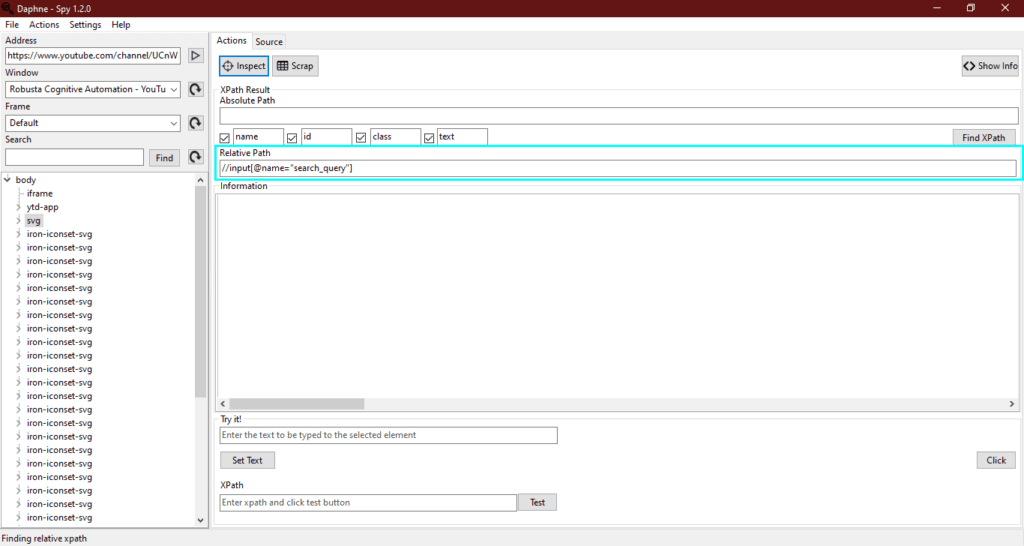
- If the element is a textbox, verify the location information by typing a word in the
Try Itfield. - Click the
Set Textbutton. WinSpy writes the text to the relevant field on the browser.
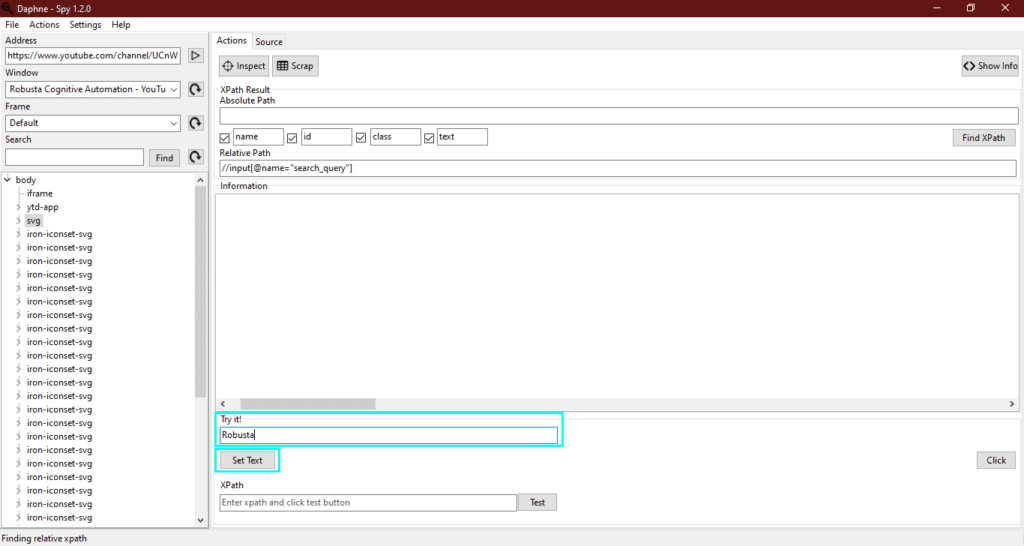
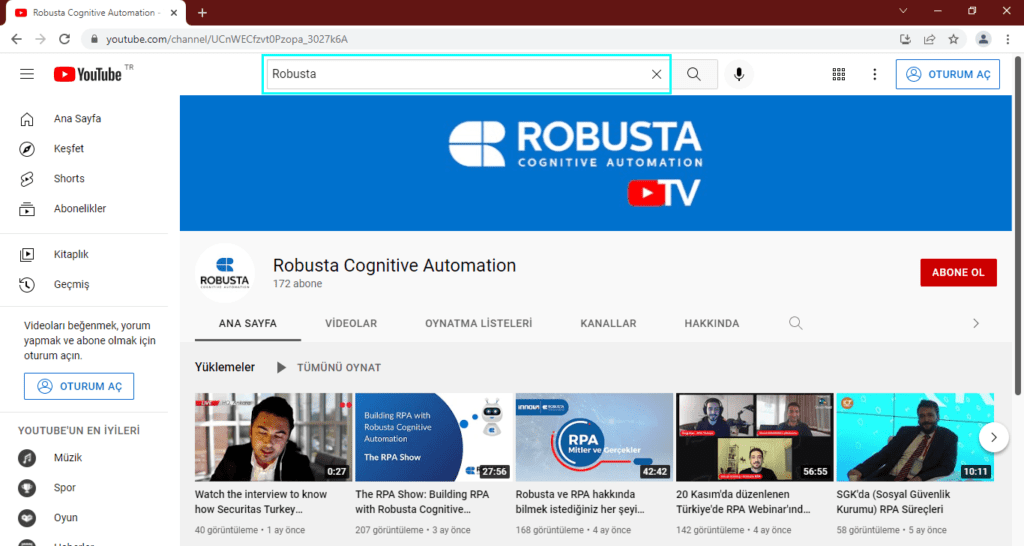
- To search for "Robusta" on YouTube, click the
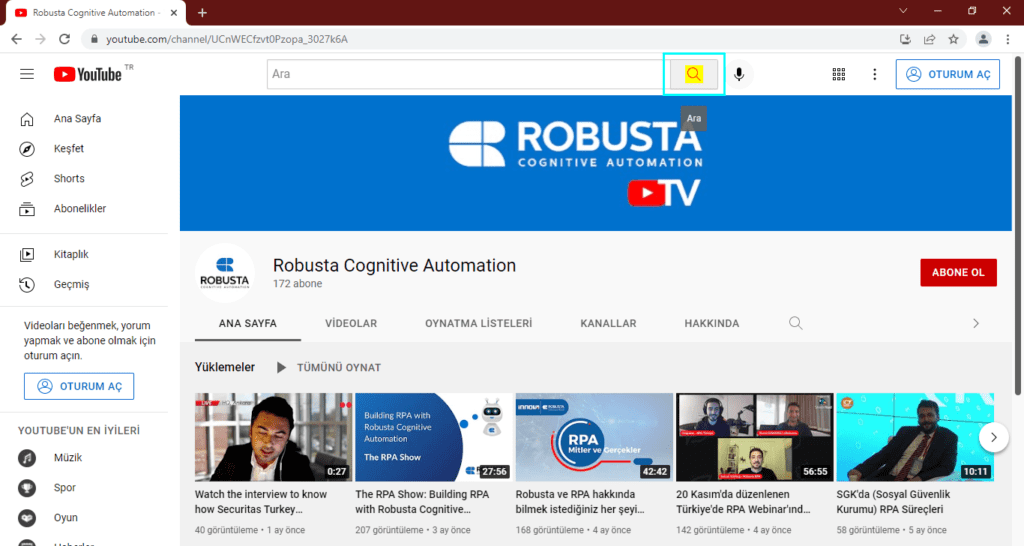
Inspectbutton again. - Hover over the
Searchbutton and wait for 2-3 seconds to obtain its XPath.
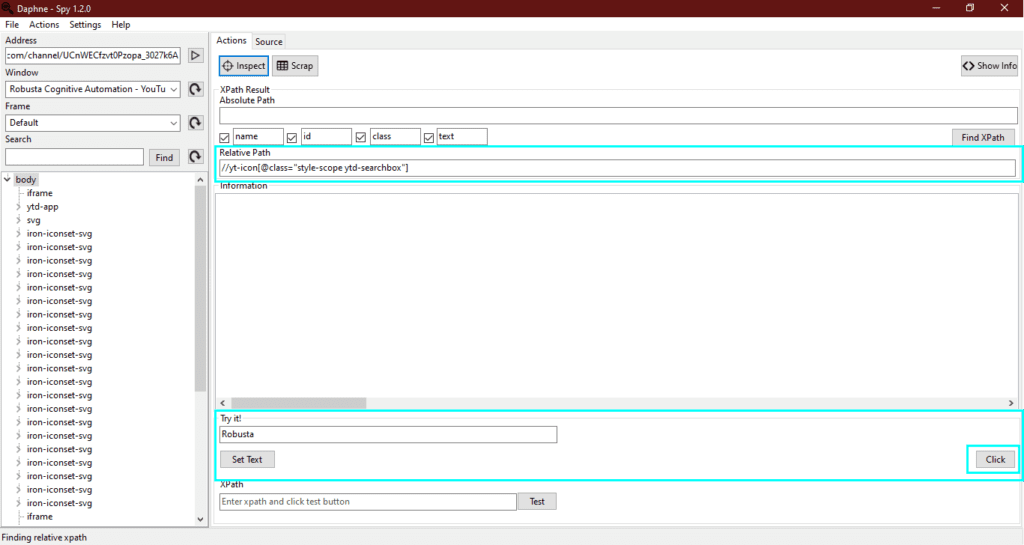
- If the relevant element is a button, verify the location information by clicking the
Clickbutton in theTry Itfield on WinSpy.
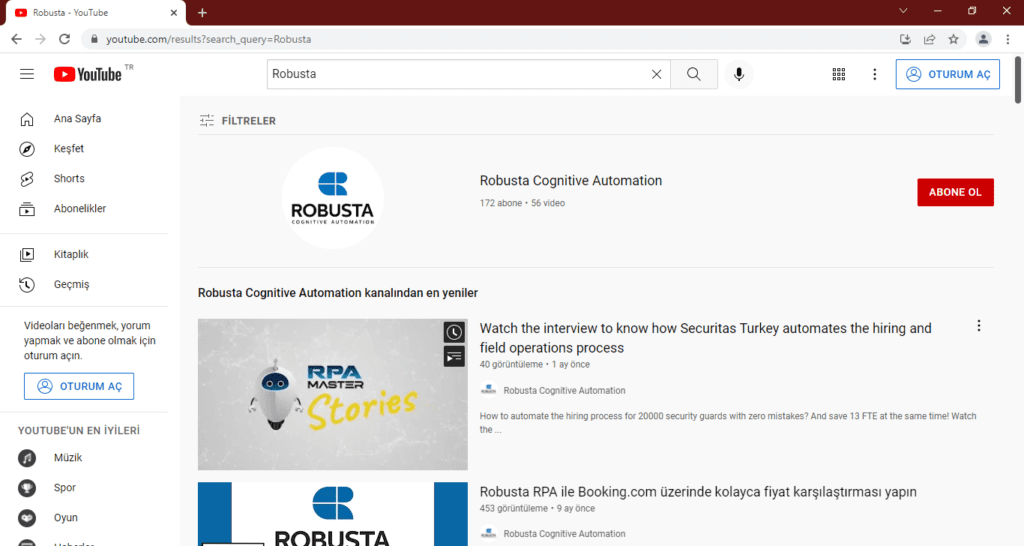
- This completes the search operation on YouTube via WinSpy.
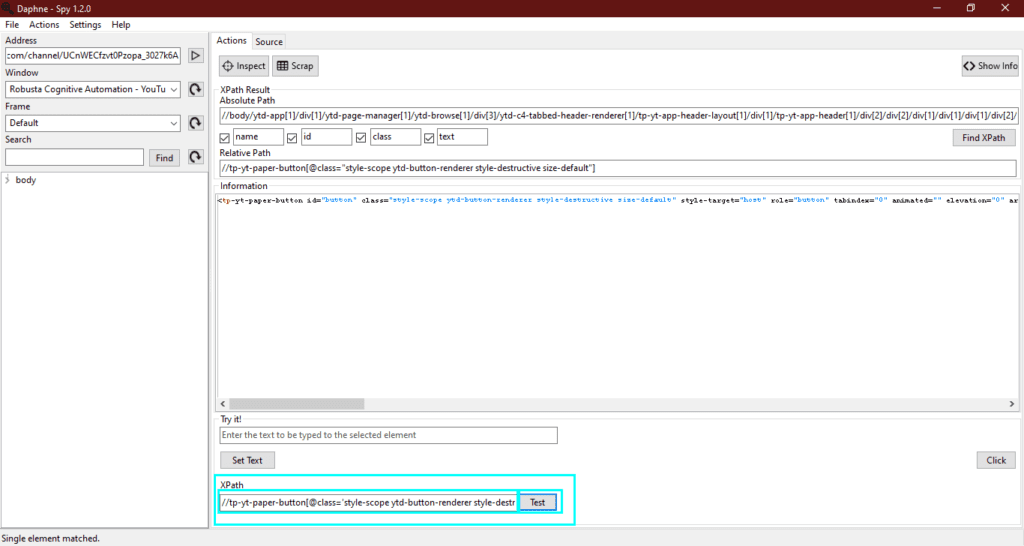
- To check manually found XPath information, type or copy-paste the XPath into the
XPathfield and click theTestbutton.
Scrape data from a web page
If you want to scrape a table from a web page, table XPath information can be found via WinSpy.
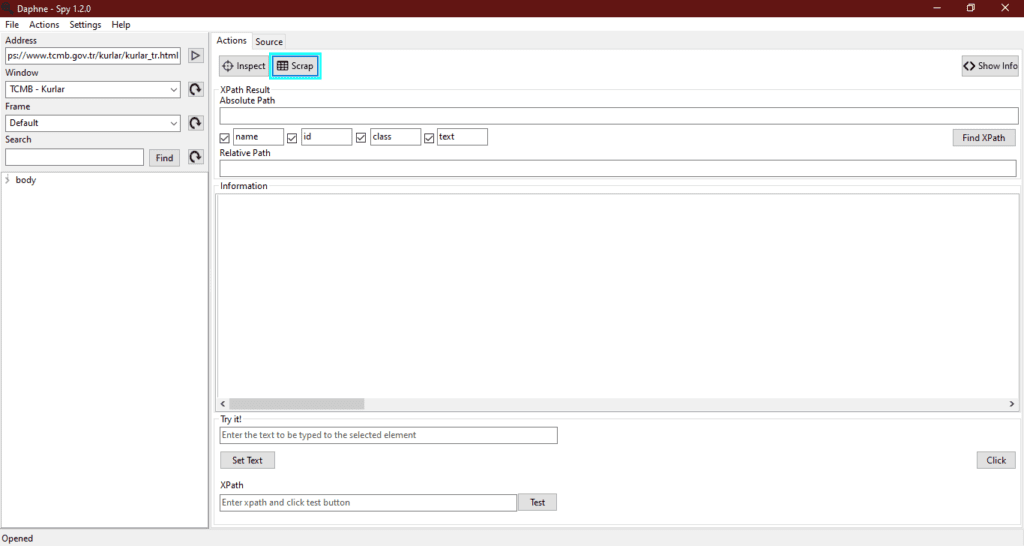
- Click the
Scrapbutton to scrape a table on WinSpy.
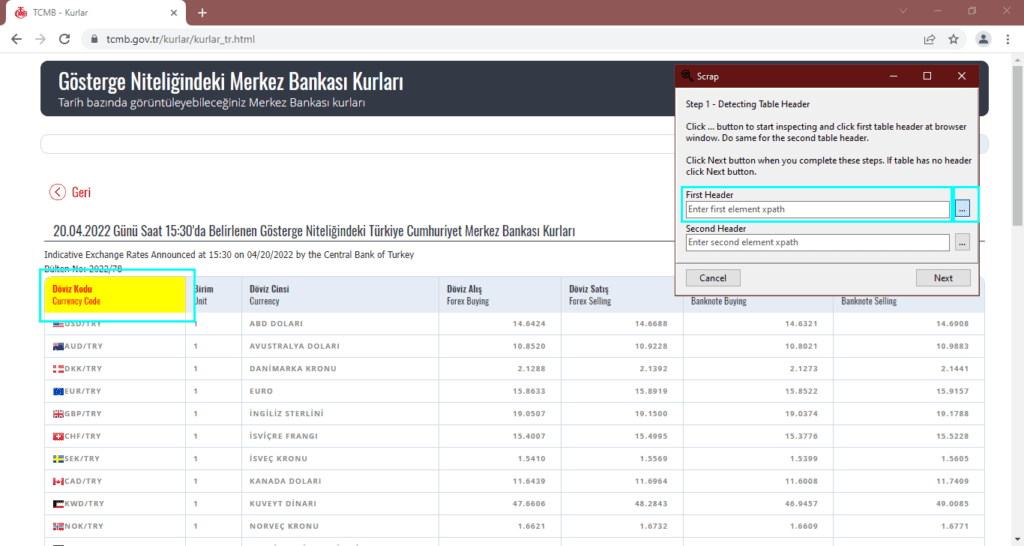
- The
Scrapwindow will displayFirst HeaderandSecond Headerfields. Click the...button next to theFirst Headerfield. - Hover over the first header element for 2-3 seconds. Repeat this process for the second header field.
- After finding XPath information for both headers, click the
Nextbutton.
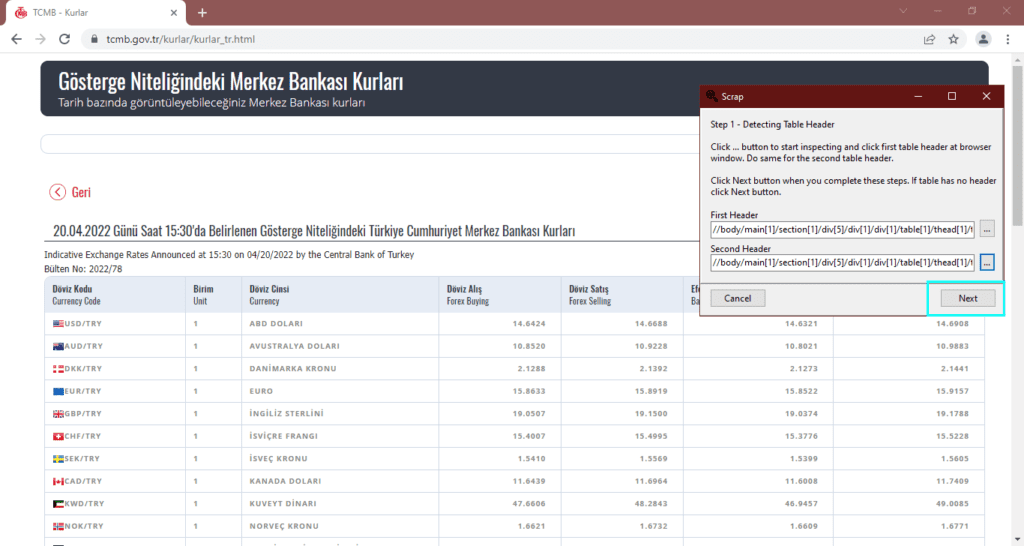
- Click the
...button next to theFirst Columnfield. - Hover over the first column area for 2-3 seconds. Repeat this process for the second column.
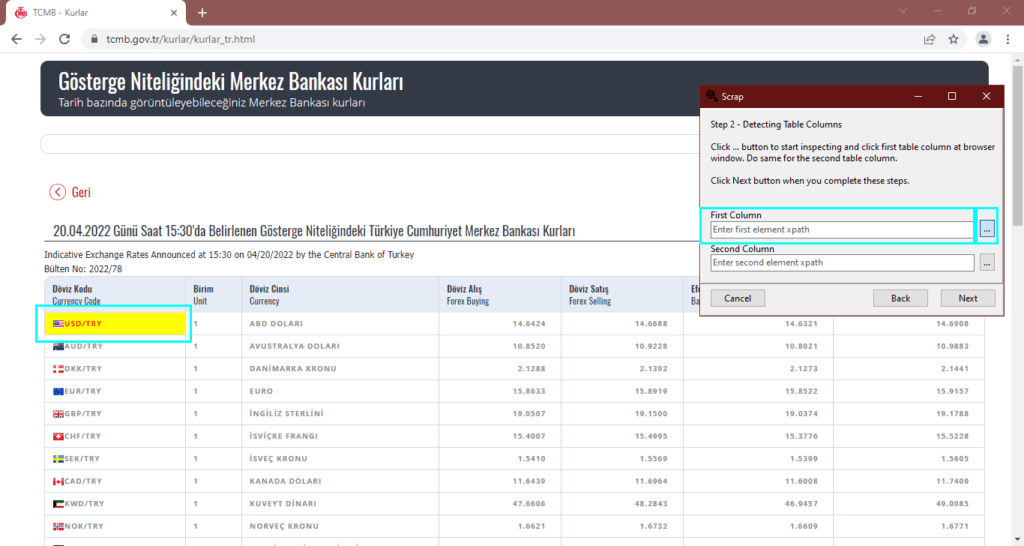
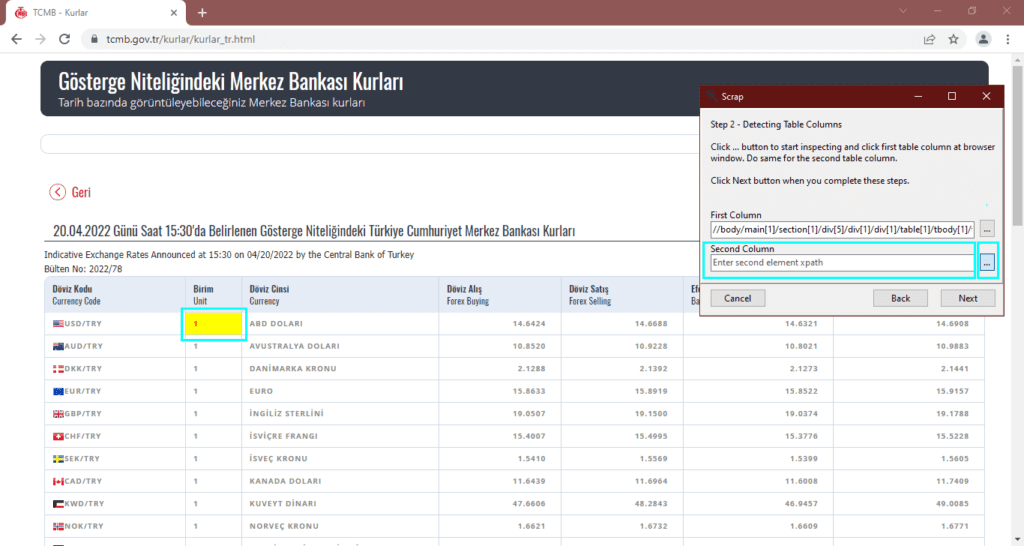
- After finding XPath information for the first and second columns, click the
Nextbutton.
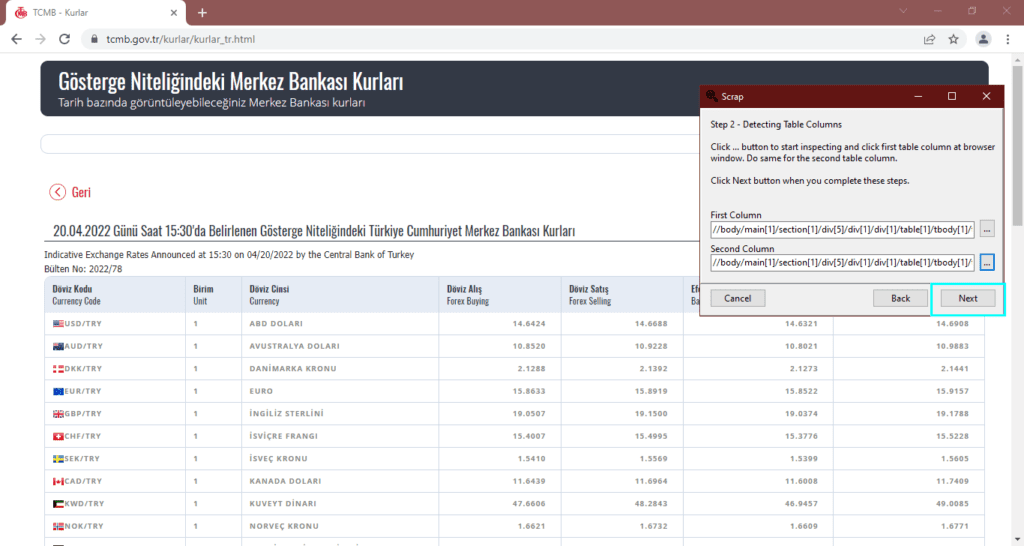
- Select the XPath information for the first and second rows.
- Click the
...button next to theFirst Rowfield. - Hover over the first row area for 2-3 seconds. Repeat this process for the second row.
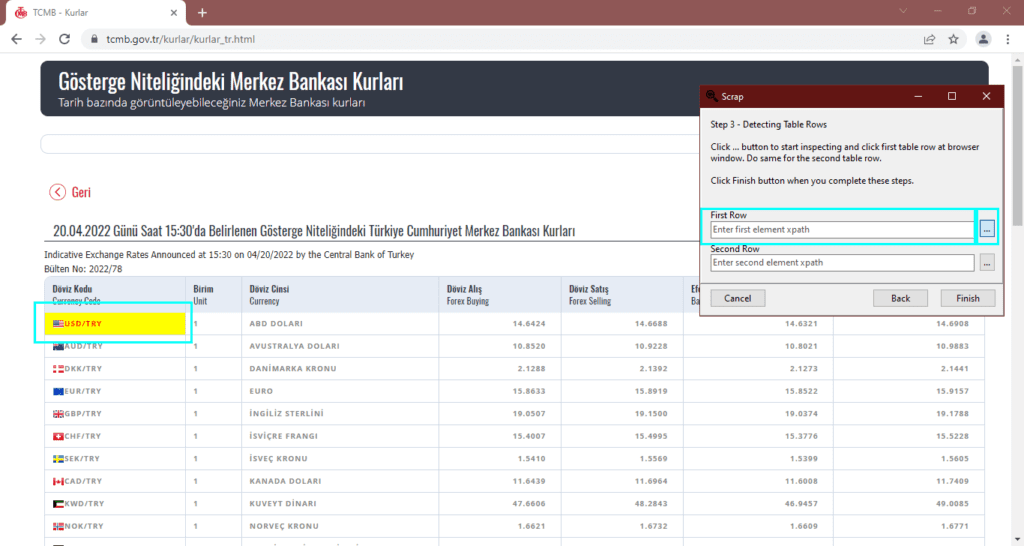
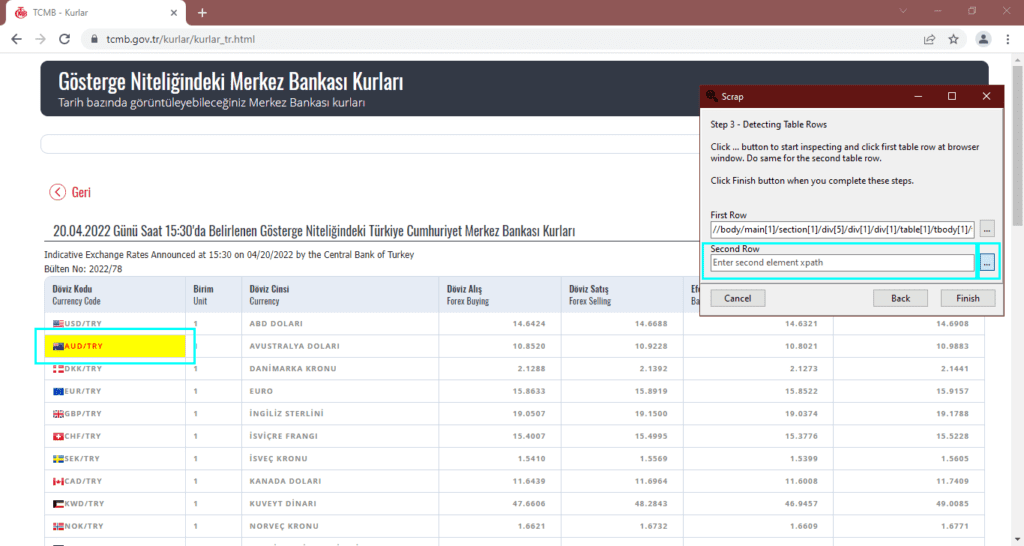
- Click the
Finishbutton.
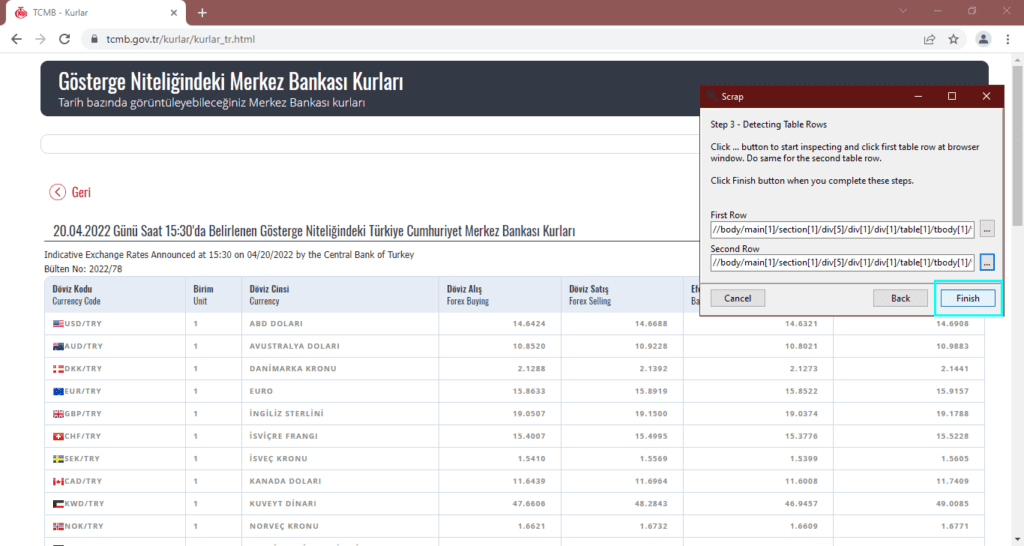
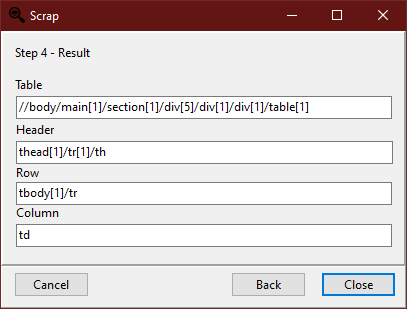
- After completing all steps, the XPath information for the relevant table will be displayed in the
Result Stepwindow.