Users
The Users interface provides a centralized location to manage all user accounts within the Robusta engine. Here, administrators can view a list of existing users, create new accounts, and perform various operations such as modifying user properties.
User Interface Elements
| Element | Description |
|---|---|
| Create user | Access the user creation form. |
| Select an action | Apply actions to selected user accounts, such as changing details or passwords. |
| Search by name | Filter the user list by user name. |
| Found … matching users, showing 1 to 100 Show next 100 | Navigate through pages of users, displaying 100 users at a time. |
| Order by user id | Sort the user list by user ID. |

Creating Users
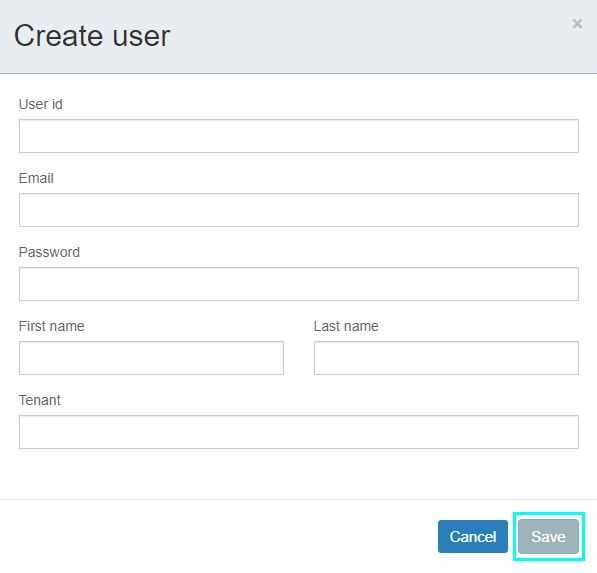
To create a new user account:
- Click the Create user button.
- Fill in the required fields in the creation form.
Create User Fields
| Field | Description |
|---|---|
| User id | The unique identifier for the user, used for accessing Robusta. This is typically the part before @mail.com. |
| The email address associated with the user account. | |
| Password | The password for the user account. |
| First name | The user's first name. |
| Last name | The user's last name. |
| Tenant | The tenant to which the user will belong. |
Managing Users
To activate the Select an action button, one or more users must be selected from the list.

Select an Action Options
| Option | Description |
|---|---|
| Change details | Modify the selected user's details. |
| Change password | Reset the selected user's password. |
| Delete | Remove the selected user(s) from the system. |
User Details Display
The following details are displayed for each user in the list:
| Field | Description |
|---|---|
| Id | The user ID used to access Robusta. |
| The email address defined for the user. | |
| Name | The full name of the user. |
| Tenant | The tenant to which the user belongs. All users within an organization typically belong to the same tenant. |
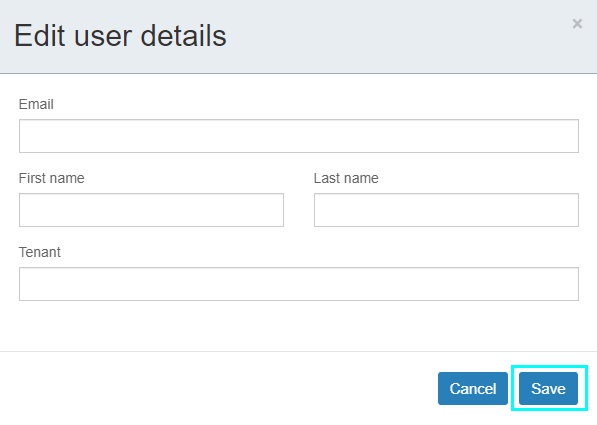
Change User Details
When selecting Change details under Select an action, the following fields can be modified:
| Field | Description |
|---|---|
| The email address the user uses for Robusta. | |
| First name | The user's first name. |
| Last name | The user's last name. |
| Tenant | The tenant the user belongs to. |
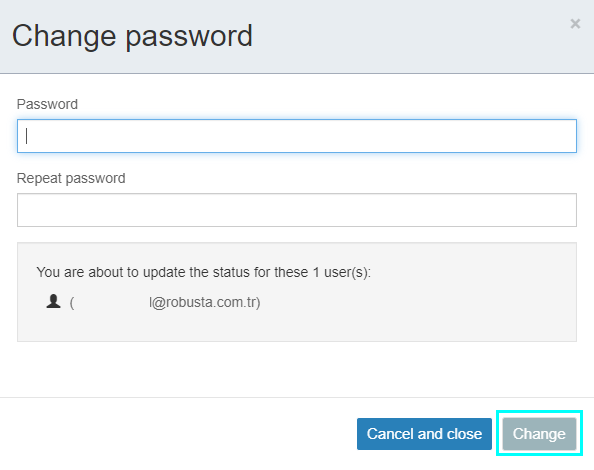
Change User Password
When selecting Change password under Select an action, the following fields are available:
| Field | Description |
|---|---|
| Password | Enter the new password. |
| Repeat password | Re-enter the new password for confirmation. |