Apps
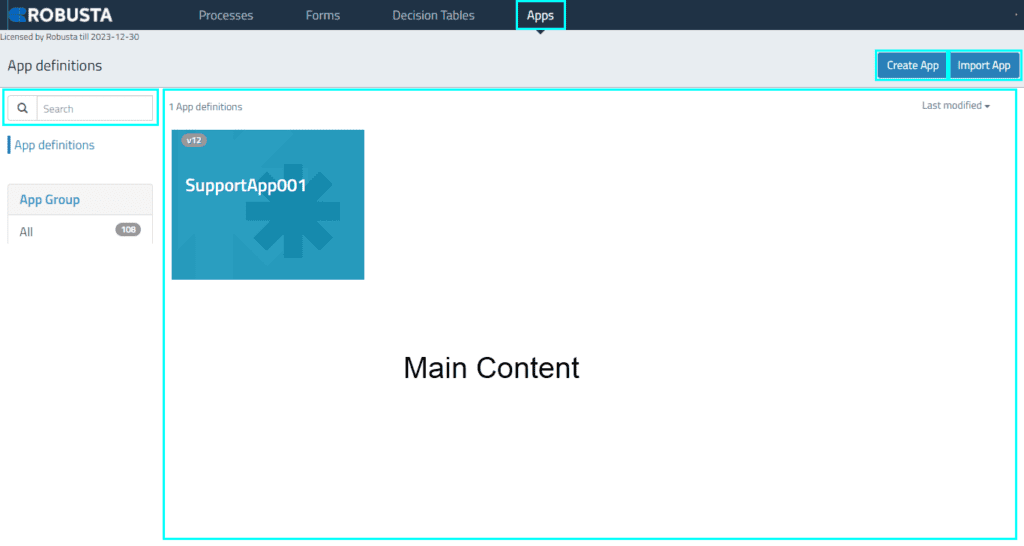
The Apps interface provides a centralized location to categorize processes within a project, publish them, and prepare them for execution. It serves as a hub for managing and deploying various application definitions.
UI Elements
| Element | Description |
|---|---|
| Create App | Creates a new application definition. |
| Import App | Uploads an existing application definition from a ZIP file. |
| Search Bar | Filters the list of applications by name. |
| Main Content | Displays a list of all defined applications. |


Create App
This section describes how to create a new application definition.


- Click the Create App button on the Apps interface.
- Fill in the required fields, then click the Create new app definition button.
| Element | Description |
|---|---|
| App definition name | The display name for the application. Spaces are allowed. This is a required field. |
| App definition key | The unique technical identifier for the application. Spaces are not allowed. This is a required field. |
| Description | An optional description for documentation purposes. |
App Editor
The App Editor is accessible after creating a new application or by selecting an existing one. From this interface, you can customize the application's icon and theme, and add new processes.


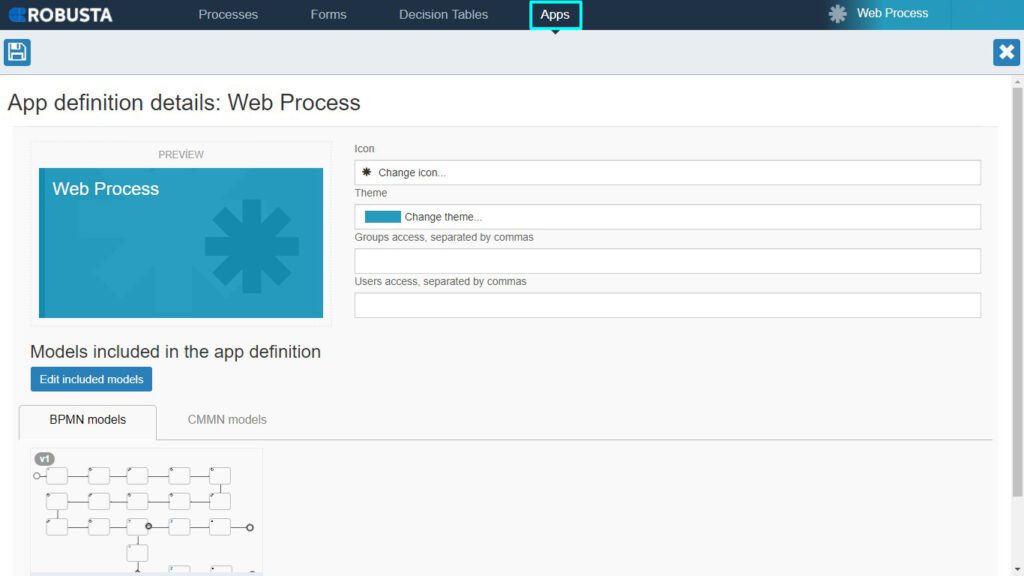
| Element | Description |
|---|---|
| Change icon | Selects an icon for the application, overriding the default. |
| Change Theme | Selects a theme for the application, overriding the default. |
| Groups access | Defines which user groups have access to this application. |
| User access | Defines which individual users have access to this application. |
| Element | Description |
|---|---|
| Edit included models | Specifies which processes (models) are included within this application. |
Import App
To add an existing application to the Apps interface:


- Click the Import App button.
- Click the Dosya Seç button to browse for the application's ZIP file, or drag and drop the ZIP file into the designated area.
- The imported application will appear in the Visual Editor. After making any necessary edits, click the Save button to complete the import.