Input and Output Fields
This section describes the Input and Output fields used in decision tables. Input columns, typically blue, define the conditions for a rule, while Output columns, typically gray, specify the resulting actions or values.

Adding Columns
Input and Output columns can be added using the following methods:
- Click "New Input" or "New Output".
- Edit the column using the "Edit Screen" that appears after clicking.
Input Column Fields
| Element | Description |
|---|---|
| Column label | The label for the input column. |
| Variable name* | The name of the input variable that will be defined. |
| Variable type* | The data type of the input variable. Options include: String Number Boolean Date Collection |
| Allowed values | Specific values that are permitted for input. |
Output Column Fields
| Element | Description |
|---|---|
| Column label | The label for the output column. |
| Variable name* | The name of the output variable that will be defined. |
| Variable type* | The data type of the output variable. Options include: String Number Boolean Date |
| Allowed values | Specific values that are permitted for output. |
Required Fields: Fields marked with an asterisk (*) are mandatory and must be filled in.
The variable name defined in an Input Column must match the variable name used in the process, as the Input Column retrieves its value from this process variable.
Entering a dash (–) in a cell indicates that the input is irrelevant to the rule, and the output value will be assigned regardless of conditions. It is not necessary to define rules in every cell.
Input variables can receive values from various sources within the process, such as Data Objects, Script Tasks, and Result Variable Name fields.
Output variables only need to be defined in the Variable Name field within the Decision table; no further definition is required in the process.
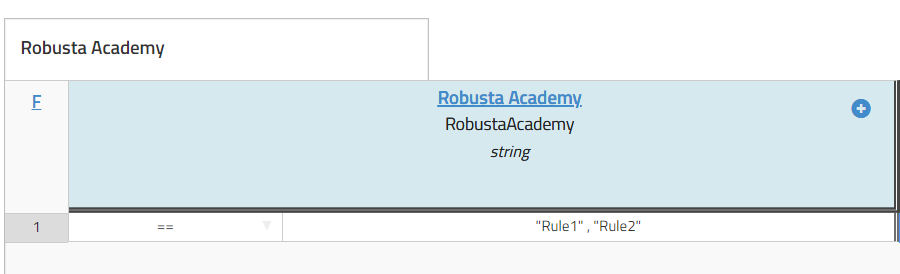
Multiple conditions within a single cell can be separated by a comma, which acts as an "OR" operator.
Entering Values and Operators
- Double-click the desired cell to enter values.
- Select the operator for the relevant row from the field to the left of the columns.
Managing Rules
A "Rule" refers to each row in a decision table. Rules can be added using the following methods:
- Click Actions > Add Rule.
- Right-click on any rule and select Add Rule Below or Insert Rule Above.