Ftp Definitions
Ftp Definitions allow you to configure connections to FTP and SFTP servers. This feature enables Robusta to monitor specific directories for files, initiating processes based on file presence (Trigger) or serving as a precondition for scheduled processes (Pre-Condition).
Managing FTP Definitions
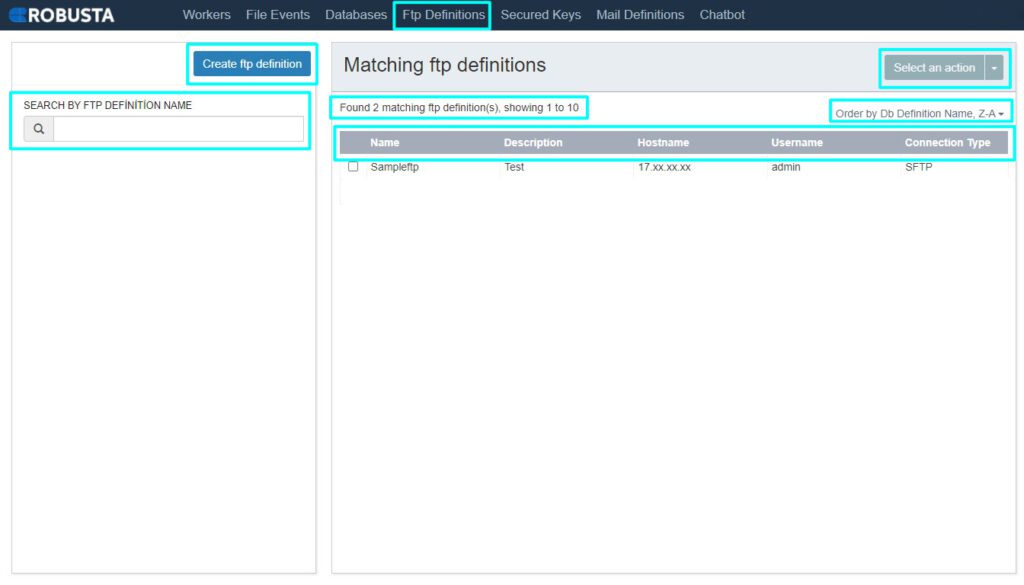
FTP Definitions List View

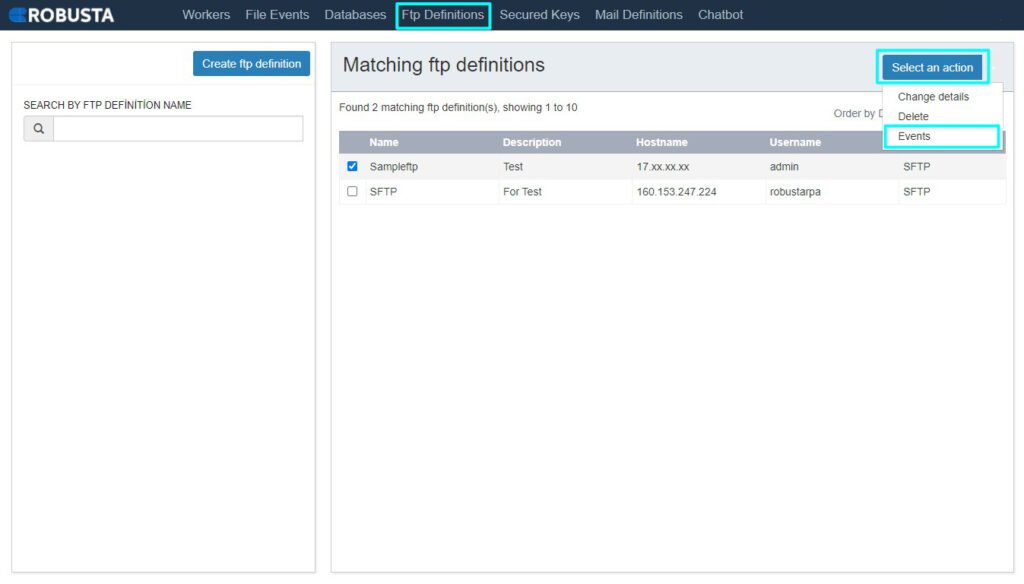
The following table describes the elements found on the FTP Definitions list page.
| Element | Description |
|---|---|
| Create FTP Definition | Button to access the FTP definition creation form. |
| Select an action | Dropdown menu to perform actions on selected FTP definitions, such as deleting them, modifying their details, or defining new FTP events. |
| Search by FTP Definition Name | Field to search for FTP definitions by name within the list. |
| Show next 10 | Button to load the next 10 FTP definitions in the list. |
| Order by FTP Definition Name | Sorts the FTP definitions by their name in ascending or descending order. |
| Name | The unique name assigned to the FTP definition. |
| Description | A brief explanation or notes about the FTP definition. |
| Hostname | The hostname or IP address of the FTP/SFTP server. |
| Username | The username used to authenticate with the FTP/SFTP server. |
| Connection Type | Indicates whether the connection is FTP or SFTP. |
Creating an FTP Definition
Follow these steps to create a new FTP definition:
- Click the Create FTP Definition button.
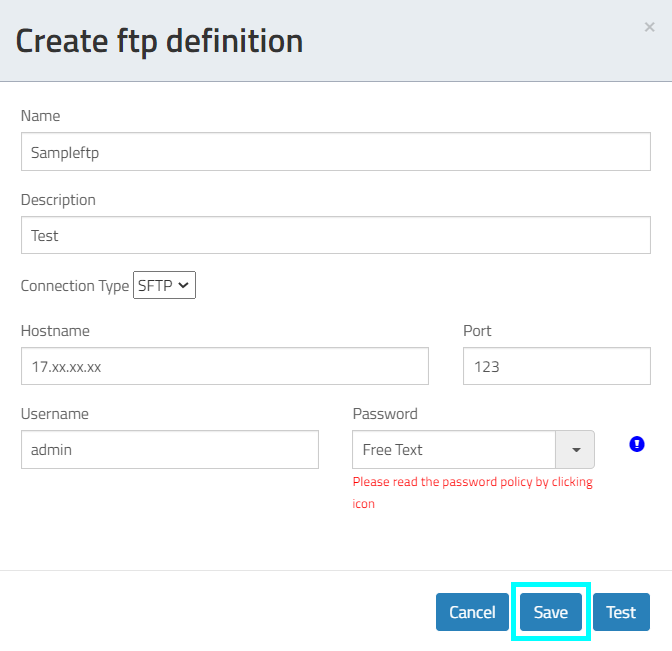
- Fill in the required fields in the creation form:
| Element | Description |
|---|---|
| Name | A unique name for the FTP definition. |
| Description | A brief description of the FTP definition. |
| Connection Type | Select either FTP or SFTP. |
| Hostname | The server's hostname or IP address. |
| Port | The port number for the connection (e.g., 21 for FTP, 22 for SFTP). |
| Username | The username for server authentication. |
| Password | The password for server authentication. If entered as plain text, it will be visible in log data. For enhanced security, it is recommended to retrieve this information from a vault system. |
Defining FTP Events
To define an FTP event, first select an FTP definition from the list. Then, click the Select an action button and choose Events.
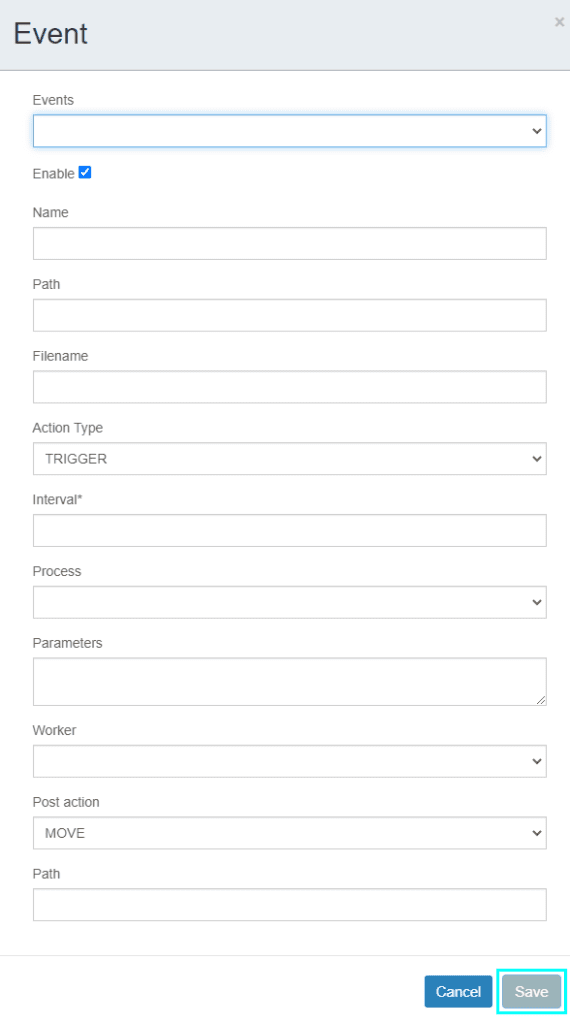
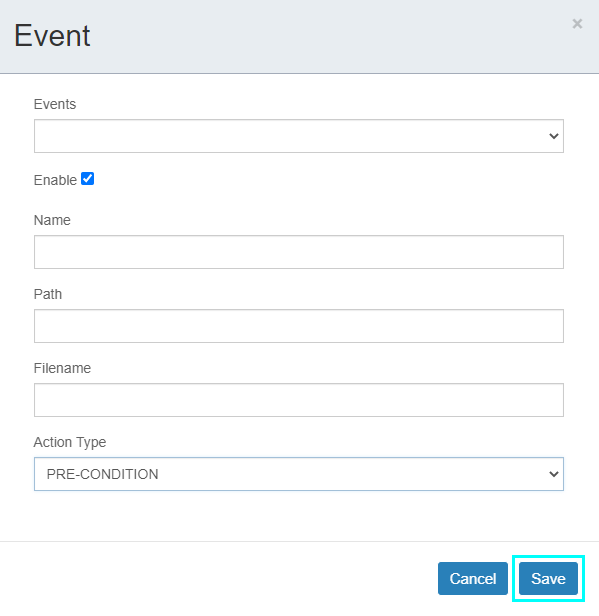
On the event configuration window, you can define how Robusta interacts with files on the FTP/SFTP server. There are two primary action types:
- Pre-Condition: Ensures that a specific file must be present in the directory for a scheduled process to start.
- Trigger: Initiates a new process immediately when a specified file is detected in the relevant directory.
Follow these steps to define an FTP event:
- Fill in the relevant fields in the event configuration window.
- Select the Action Type (Pre-Condition or Trigger).
- If Trigger is selected:
- Enter the frequency of operation in the Interval field.
- Select the Process that will run.
- Enter any necessary Parameters for the process.
- Select the Worker that will execute the process.
- Choose a Post Action:
- Select
Removeto delete the file after the process completes. - Select
Moveto move the file to another directory after the process completes. IfMoveis selected, specify the destination Path.
- Select
- Click the Save button to finalize the FTP event definition.
FTP Event Configuration Fields
| Element | Description |
|---|---|
| Events | Displays a list of existing file events associated with this FTP definition. |
| Name | A unique name for the FTP event. |
| Enable | Toggle to activate or deactivate the FTP event. When enabled, the event becomes active and Robusta starts monitoring. |
| Path | The directory path on the FTP/SFTP server to be monitored. |
| Filename | The name of the file to listen for, including its extension. This field is optional and supports REGEX statements (e.g., *.log, Report_*.txt). |
| Action Type | Defines how the event behaves: Pre-Condition (file presence is a prerequisite for a scheduled process) or Trigger (file presence initiates a new process). |
| Interval | The frequency (in minutes/hours/etc.) at which Robusta checks for the file. Only applicable for Trigger action type. |
| Process | The Robusta process to be executed when the event condition is met. Only applicable for Trigger action type. |
| Parameters | Key-value pairs of parameters to pass to the selected process. Only applicable for Trigger action type. |
| Worker | The specific worker that will run the process. Only applicable for Trigger action type. |
| Post Action | Action to perform on the file after the process completes: Remove (deletes the file) or Move (relocates the file). Only applicable for Trigger action type. |
| Path | The destination directory path if Move is selected as the Post Action. Only applicable for Trigger action type. |