Definitions
Overview of the Definitions Interface
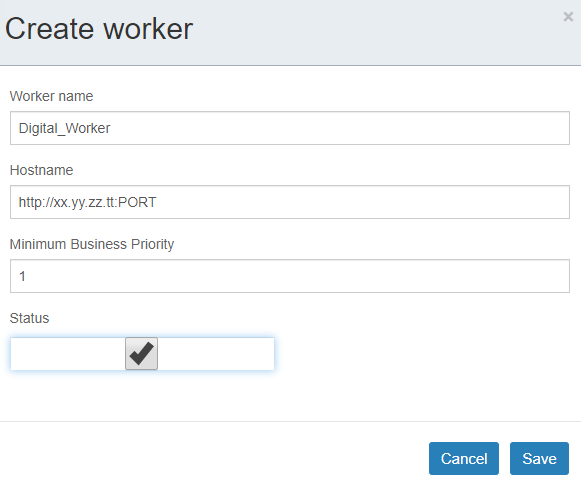
The Definitions interface allows you to manage and identify digital employees (workers) by their IP address and port number. This section facilitates the creation of new workers and provides an overview of existing ones, where processes are executed.
Interface Elements
| Element | Description |
|---|---|
| Create worker | Access the worker creation field through this button. |
| Check worker status | Check the status of all existing workers. |
| Upload license | Upload the purchased license via this button. |
| Select an action | Perform bulk actions (update, delete, set status to passive) on selected workers in the list. |
| Search By Worker Name | Search for workers in the list by their name. |
| Pagination Controls | Navigate through the list of workers, showing them in batches (e.g., 10 per page). |
| Order by worker name | Sort workers by their name. |
| Name | The name of the worker. |
| Hostname | The access address information for the worker (IP address and Port Number). |
| Minimum Business Priority | The minimum priority number a worker accepts. Priority levels range from 1 (lowest) to 99 (highest). |
| Take Screenshot | Enable or disable taking screenshots for each step performed in the front-end interface while processes are running. |
| Enabled | Indicates whether the worker is enabled (Y) or disabled (N). |
| Server status | The accessibility status of the server: Up: Worker is accessible. Down: Worker is not accessible. Unknown: Worker is passive. |
| Worker status | The availability status of the worker: Available: Worker is ready or can run a new task. Busy: Worker is currently running a task. Maintenance: Worker is in maintenance. Unknown: Worker is passive. |
| Apps | Click the eye icon to view applications running on the worker. |
Creating a New Worker
To create a new worker:
-
Click the Create worker button.
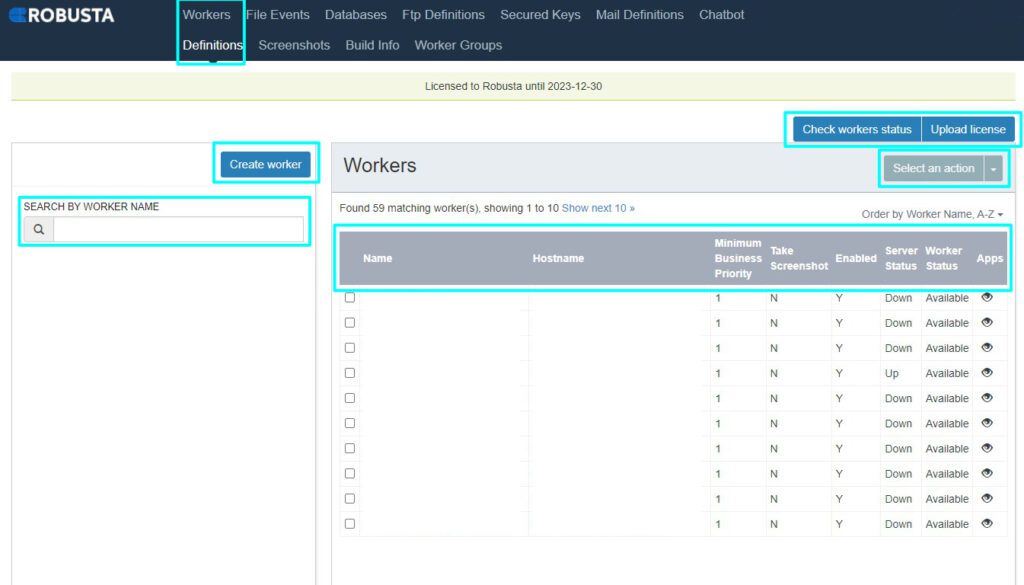
The following fields are available in the worker creation window:
Element Description Worker name The name assigned to the digital employee/robot. Hostname The IP address and Port Number of the digital worker. Minimum business priority Define the minimum priority level (1-99) at which the digital worker is required to operate. 1 is the lowest priority, 99 is the highest. Status Select whether the digital employee/robot is active (Enabled: Y) or passive (Enabled: N). All this information will be displayed in the main "Matching Workers" area after creation.
After completing the Create worker window, ensure the steps specified on the Worker Group page are performed.