Using “Functions” Activity
The “ Functions ” Activity under the “ Applications ” component can refresh the page in the previously opened “ Open ” Activity check whether a field exists on the page or find the number of rows in a table on the page.
[
 ](https://docs.robusta.ai/wp-content/uploads/2022/10/image-25.png)
Case Examples
Case 1: Finding how many rows of data are in a table on a page.
With the “ Functions ” activity, it is possible to access the information on how many different currencies the daily exchange rates are given on the “TCMB” page.

- Fill in the required fields of the “Applications – Open” activity.
- The page to work on is set in this activity.
[
 ](https://docs.robusta.ai/wp-content/uploads/2022/10/AppOpen.png)
Applications – Open – Properties
| * Application name | TCMBCurrencies | *URL | https://www.tcmb.gov.tr/kurlar/today.xml |
| *Type | Chrome | Maximize | ☑ |
Note: * Fields selected with are required, others are optional.
[
 ](https://docs.robusta.ai/wp-content/uploads/2022/10/AppFunc.png)
- Fill in the required fields of the “Applications – Functions” activity.
- Pay attention to the “XPath” of the table to be used in this step.
Applications – Functions – Properties
| * Application name | ${TCMBCurrencies} | *Field | //*[@id=”kurlarContainer”]/table[1]/tbody/tr[position()>1] |
| Result Variable Name | count | *Action | elementcount |
Note: * Fields selected with are required, others are optional.
Check “ How to Find “Xpath” ” to understand the “Field”.
How to Find “Xpath”
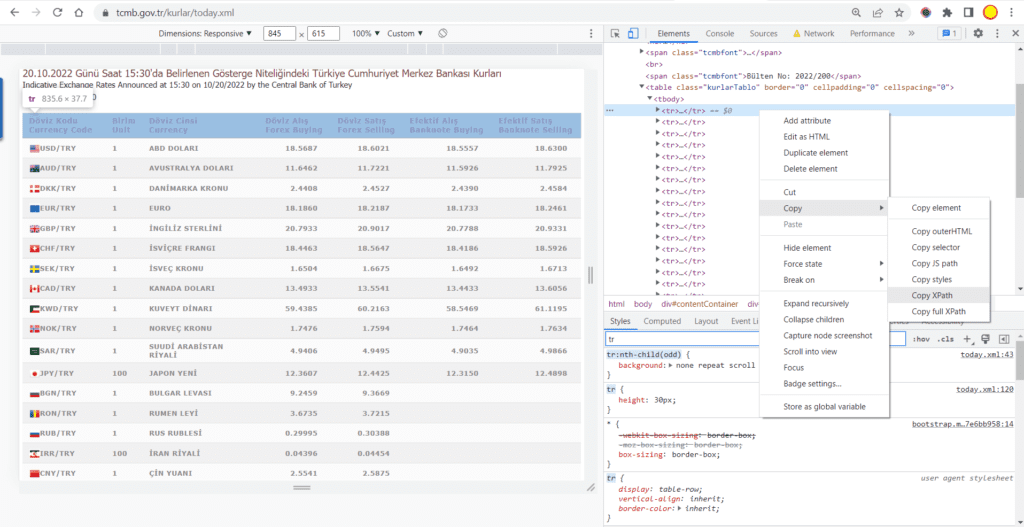
- Right click on the page and click “Inspect”
- In order to reach the area where the table is located, “divs” and rows are opened one by one in the panel on the right of the screen.
- Right click on the first row of the table (“tr”) and click “Copy Xpath”
[
 ](https://docs.robusta.ai/wp-content/uploads/2022/10/Xpath-1.png)
Note
In this example, since the header is also considered a row, it is necessary to skip the first row in the Xpath. Therefore, Xpath should be written as:
//*[@id="kurlarContainer"]/table[1]/tbody/tr[position()>1]
-
“position()>1” means skip the first “tr”
-
The “Count” variable will return “22” when the process is run.
[
 ](https://docs.robusta.ai/wp-content/uploads/2022/10/image-26.png)
Case 2: Refresh operation on a page.
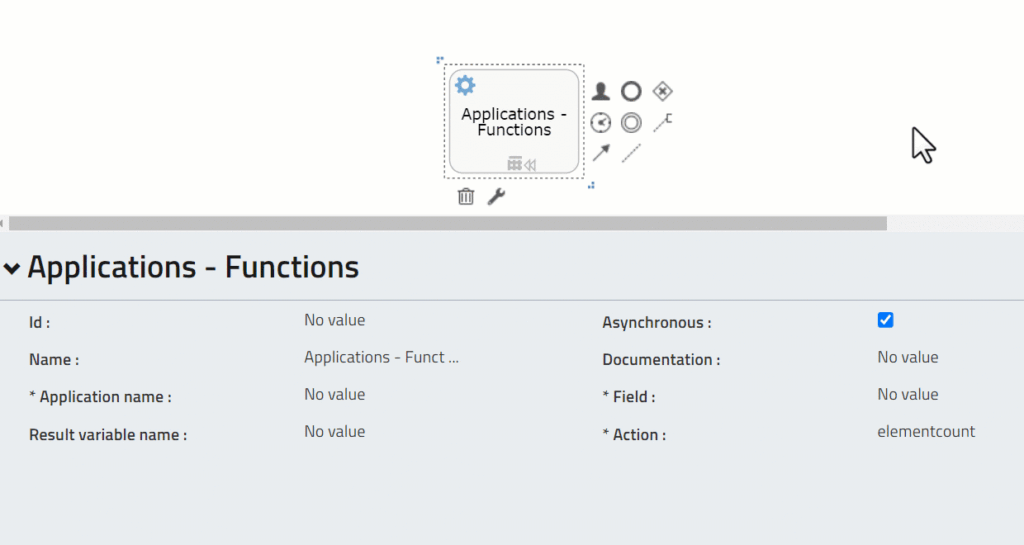
The “ Functions ” activity can be used in cases where the page opened anywhere in the process needs to be refreshed and reloaded.
- Under the “Functions” component, the “Action” part is changed to “refresh”.
- There is no need to assign any variables during this process.
- It is enough to enter the “Xpath” of the area on the page that you want to refresh.
[
 ](https://docs.robusta.ai/wp-content/uploads/2022/10/Refresh2-1.gif)
Case 3: The process of checking whether a field on a page exists.
The “ Functions ” activity, it can be used in cases where it is necessary to check whether a field exists on a page.
- For example, it can control an error message on a page in the process.
[
 ](https://docs.robusta.ai/wp-content/uploads/2022/10/image-29.png)
In this example, an incomplete entry will be made to check whether the error has appeared. In other processes, these fields can be filled in completely and a control stage can be created with the “Gateway” structure and progress can be made according to this control.
[
 ](https://docs.robusta.ai/wp-content/uploads/2022/10/Case3Surec.png)
- Fill in the required fields of the “Applications – Open” activity.
- The page to work on is set in this activity.
[
](https://docs.robusta.ai/wp-content/uploads/2022/10/AppOpen.png)
Applications – Open – Properties
| * Application name | FunctionsExist | *URL | https://uyg.sgk.gov.tr/vizite/welcome.do |
| *Type | Chrome | Maximize | ☑ |
Note: * Fields selected with are required, others are optional.
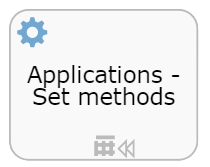
- Fill in the required fields of the “Applications – Set methods” activity.
- Select the field where “Username” will be entered.
[
 ](https://docs.robusta.ai/wp-content/uploads/2022/10/AppSet.png)
Applications – Set methods – Properties
| * Application name | ${FunctionsExist} | *Field | //input[@name=”kullaniciAdi”] |
| * Text | RobustaAcademy | *Type | text |
Note: * Fields selected with are required, others are optional.
- Fill in the required fields of the “Applications – Mouse actions” activity.
- Click the login button.
[
 ](https://docs.robusta.ai/wp-content/uploads/2022/10/AppMouse.png)
Applications – Mouse Actions – Properties
| * Application name | ${FunctionsExist} | *Field | //input[@name=”kaydet”] |
| Wait until load | ☑ | Wait until visible | ☑ |
Note: * Fields selected with are required, others are optional.
- Fill in the required fields of the “Applications – Functions” activity.
- If an error is encountered on the screen, the “control” variable changes to “True”, if not, it changes to “False”.
[
 ](https://docs.robusta.ai/wp-content/uploads/2022/10/AppFunc-2.png)
Applications – Functions – Properties
| * Application name | ${FunctionsExist} | *Field | /html/body/table[2]/tbody/tr/td/table[1]/tbody/tr/td[2] |
| Result Variable Name | control | *Action | exists |
Note: * Fields selected with are required, others are optional.
- To control the flow of the process, the “Exclusive gateway” activity is added under the “Gateways” Component.
- Fill in the required fields of the arrows connecting to the “Gateways” structure.
[
 ](https://docs.robusta.ai/wp-content/uploads/2022/10/TrueFalse.png)
Arrow – True – Properties
| Flow condition | ${control==true} |
| *Default Flow* | ☐ |
Note: * Fields selected with are required, others are optional.
Arrow – False – Properties
| Flow condition | |
| *Default Flow* | ☑ |
Note: * Fields selected with are required, others are optional.
- Since an error was encountered in the process, the “Control” variable took the value “True” and continued the process in the direction of that arrow.
[
 ](https://docs.robusta.ai/wp-content/uploads/2022/10/Log3.1-1.png)