Start Chrome with Specific Profile
During the process, it may be required to open websites in a specific profile. The necessary settings should be pre-configured and saved in the profile.
To create a new Chrome profile: Click Here
Using Specific profile during the process
- A folder needs to be created in the C:\ directory with a name like “SpecificProfiles” (which can be changed).
- Inside this folder, a subfolder named “Default” must be created.
- C:\SpecificProfiles\Default

- Previously created Chrome profiles can be accessed from this directory.
- C:\Users\user\AppData\Local\Google\Chrome\User Data\
- In this example in the photo, Enter the “Profile 2” folder and copy all the data.
[
 ](/assets/images/bab5747eda3d63e5613a62ce66e8992b.png)
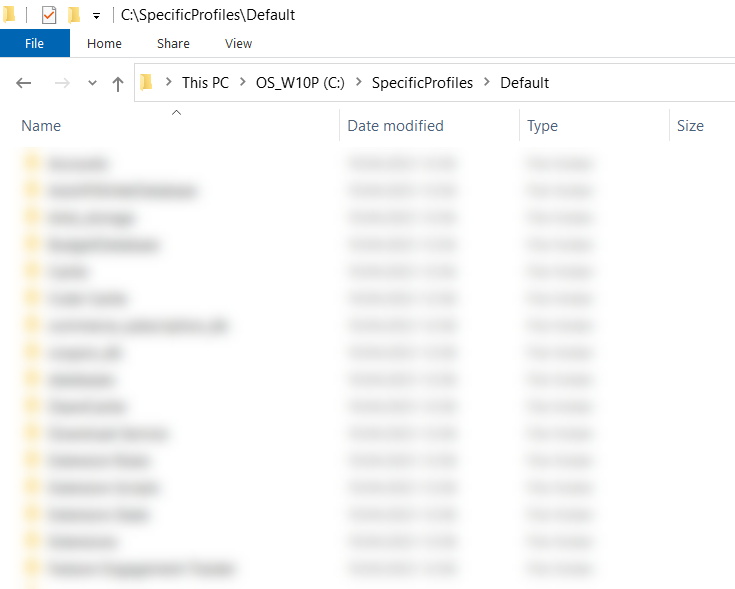
- The previously copied data is pasted into the “Default” folder that was previously created.
- C:\SpecificProfiles\Default\
[
 ](/assets/images/df2fbfa30e255139ed8e46a12ddf771a.png)
- The directory address is written in the Profile Directory properties field within the Open component. The “Default” directory is not used.
- C:\SpecificProfiles
[
 ](/assets/images/08d60d57c7eab7993041faca515797fd.png)
- During the process, the necessary settings for the profile should be made and saved in advance.