Definitions
Definitons field allows the digital employees/robots to be identified with their IP address and Port number.
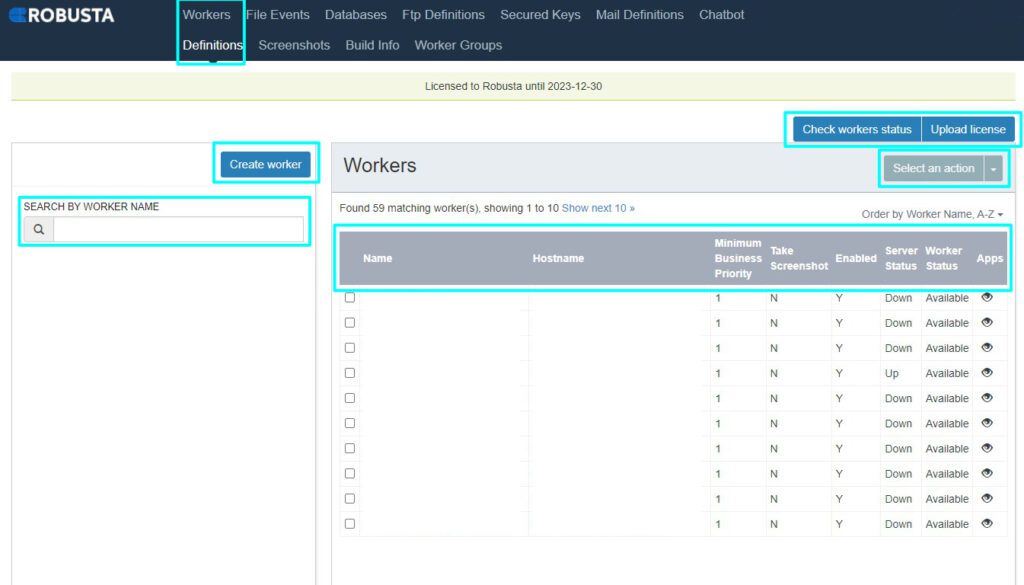
Create Worker: By clicking on this area, robots are created where the processes will run. In the image, previously created robots are seen in the “Matching Workers” area.
| Create worker | Access worker creation field through this button. |
| Check worker status | Check all existing workers status. |
| Upload license | Upload the purchased licence via this button. |
| Select an action | Selected workers in the list can be updated, deleted or made status passive. |
| Search By Worker Name | Workers on the list can be found via this field. |
| Found … matching worker(s), showing 1 to 10 Show next 10 | By clicking can show all workers by 10. |
| Order by worker name | Orders workers by worker name. |
| Name | Name of worker. |
| Hostname | Information of access address. |
| Minimum Business Priority | Minimum worker priority number that is accepted by the worker. |
| Take Screenshot | Take screenshot is used to take screenshots for each step in front-end interface where steps are performed while processes working. |
| Enabled | The worker is enabled or not. (Y/N) |
| Server status | Status of server: Up, Down and Unknown. Up: Worker is accessible. Down: Worker is not accessible. Unknown: Worker is passive. |
| Worker status | Availability status of worker: Available, Busy, Maintenance and Unknown. Available indicates worker is ready or can run a new task, Busy indicates worker is running a task, Maintenance indicates worker in maintenance and Unkown indicates worker is passive. |
| Apps | Shows apps in worker by clicking eye button. |
Click Create worker button to create a new worker.
| Worker name | The name that will be given to the robot/digital employee. |
| Hostname | IP address and Port Number information of the robot/digital worker |
| Minimum business priority | Priority definition is made by giving a value from 1 to 99 at what priority the robot / Digital Worker is required to do. The priority level is 1, the lowest and 99 the highest. |
| Status | Robot / Digital Employee is active or passive (enabled: Y / N) is selected or not. |
After finishing with Create worker window,the steps specified on the Worker Group page should be performed.