How to Install Robusta Worker
Installing Robusta RPA Worker
New Version
Run the setup file (i.e RobustaWorkerPROD.exe or RobustaWorkerCE.exe) and follow the steps.
If any of Microsoft Defender screens are seen, please continue as shown.
[
 ](https://docs.robusta.ai/wp-content/uploads/2022/02/WindowsSmartScreen1.png)
[
 ](https://docs.robusta.ai/wp-content/uploads/2022/02/WindowsSmartScreen2.png)
Select the installation language as
English and continue.

Read and accept the license agreement and continue.

Choose the destination folder for the installation files and continue.
[
 ](https://docs.robusta.ai/wp-content/uploads/2022/10/image-11.png)
Select additional tasks and start installation.


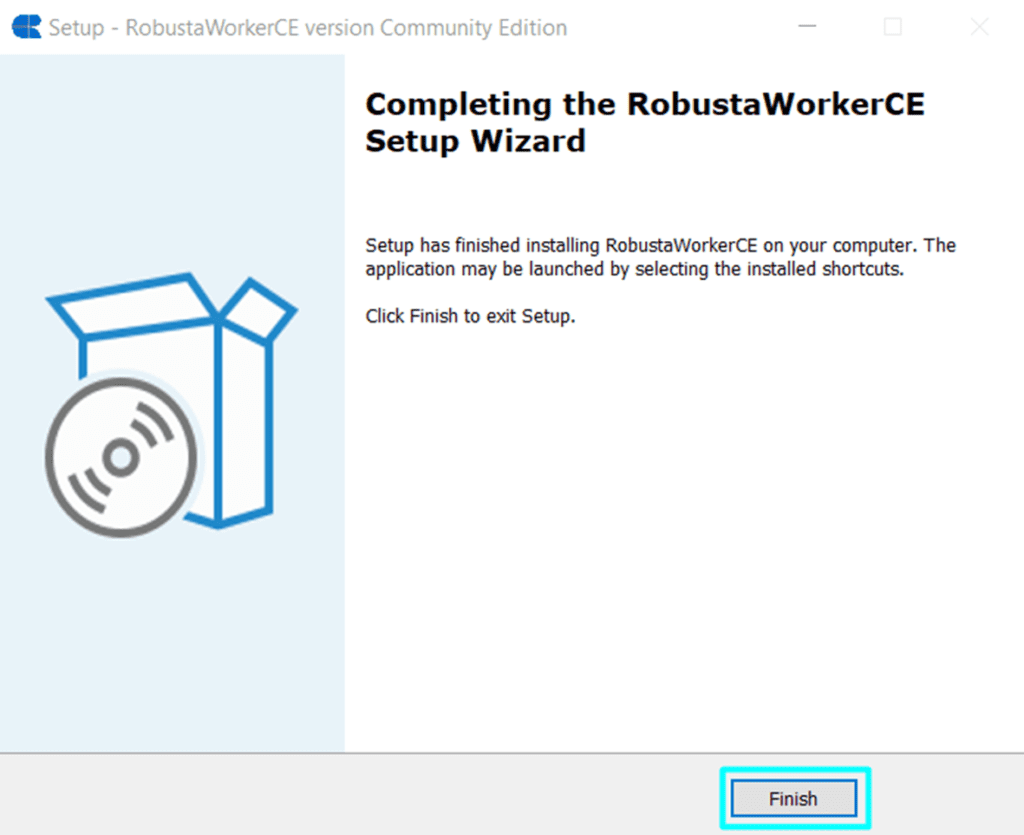
Once the installation complete, click finish to complete the process.
[
 ](https://docs.robusta.ai/wp-content/uploads/2022/10/image-14.png)
Old Version
Run the setup file (i.e RobustaWorkerPROD.exe or RobustaWorkerCE) and follow the steps.
If any of Microsoft Defender screens are seen, please continue as shown.
[
](https://docs.robusta.ai/wp-content/uploads/2022/02/WindowsSmartScreen1.png)
[
](https://docs.robusta.ai/wp-content/uploads/2022/02/WindowsSmartScreen2.png)
Select the installation language as
English and continue.
Read and accept the license agreement and continue.
[
 ](https://docs.robusta.ai/wp-content/uploads/2022/02/Setup2.png)
Select the destination location and continue.
[
 ](https://docs.robusta.ai/wp-content/uploads/2022/02/Setup3.png)
Select additional tasks and start installation.
[
 ](https://docs.robusta.ai/wp-content/uploads/2022/02/Setup4.png)
[
 ](https://docs.robusta.ai/wp-content/uploads/2022/02/Setup5.png)
Once the installation complete, click finish to complete the process.
[
 ](https://docs.robusta.ai/wp-content/uploads/2022/02/Setup7-1.png)